(content checked 7/6/00)
NOTE: When students change their addresses, tell them that they must notify the registrar's office or use the Registrar's webform to have the address changed in the Vanderbilt system. We receive tape-loads from the Registrar's office, and this tape-load will over-write any changes we have made in our database. In other words, the next tape load will put the old address back in the record, unless the Registrar has the address, too.
To change the address in a user's record on ACORN, follow these steps:
- Click on the USER MAINTENANCE BUTTON in the toolbar. This will display the User Wizards.
- It will look like this

- Click on the "Update address" button -- the 5th button in the User group in the image above -- pencil and letter
- Find the user record by Name or ID
- You will see tabs across the top of the record. These are the different address that may be placed in the record. Address 1 is usually a physical home address. Address 2 is usually a physical work address. Address 3 is always an e-mail address.
- Whatever is checked as "Primary" is where library notices go to. You can change the "Primary" address for the patron as well as update the address.
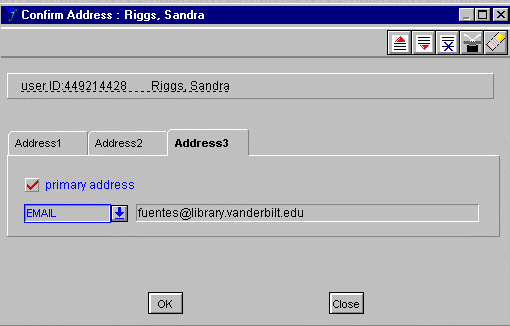
- Choose "OK" when done
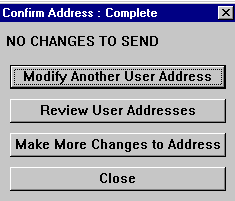
- Now "CLOSE". Make sure you double check the address in "Display User" to make sure everything is ok.