(Content checked 7/11/00)
Discharging is very straightforward, what can be difficult is spotting all the alert screens.
STEP ONE
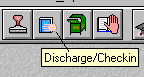
Open the Discharge wizard by choosing F6 or the Wizard button below:
STEP TWO
The Discharge window will appear:
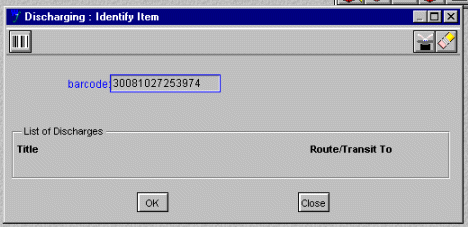
S
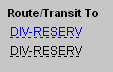
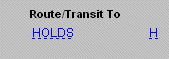
can or type the barcode. When the item has been discharged, Workflows will confirm where the item belongs and tell you if there are any fines or holds.Examples:
 |
 |
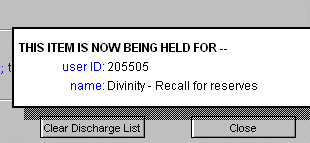 |
Workflows will provide a pop-up screen with the information. In case you turned away from the workstation, Sirsi gives you a backup method. It is important to watch the "Route/Transit To" column. That is where any special notes or messages will be.
Watch for special symbols in the right column:
$ indicates a fine
T indicates that the item is "In Transit" to another location, such as CENTRAL
H indicates a hold or recall notice.