*tip: hit ctrl + f to find what you're looking for*
Student Employee Handbook
&
Service Desk Manual
About the Library
Logistics
Procedures
Your Responsibilities
Staffing the desk and assisting patrons.
Emptying the book-drop.
Hourly head counts
Telephone protocols
Stacks Time
Shelving
Searching
Shelf-reading
Circulation policies
Loan Periods, overdues, and fines
Commonly used pseudopatrons
Important ALTCIRC rules
Override code
Divinity materials
Shelved behind the desk: Audio Cassettes, A/V Equipment, Reserve, Laptops
Shelved on 2nd Floor: Judaica, Reference, and Periodicals.
Shelved on the 1st floor: Most books, Serials, Oversize books, media
Annex Materials
Processing Annex requests
Other libraries’ materials
Biomedical, Law, Management, Music, Peabody, and Science books
“Route/Transit to VU-CENTERS”
Hold shelf
Interlibrary Loan (ILL)
Receiving ILL Materials from the ILL Office:
Checking Out ILL materials to patrons:
Checking in ILL Materials Returned by Patrons:
Circulation Tasks in Workflows: The “Divinity Desk” Toolbar
Checking Out
Discharging
Display User
Renew User
Mark Item Used
Check Item Status
Item Search & Display
Modify Title
Assigning Barcodes
Paying Bills
Laptops
Checkout
Discharge
Overnight checkout
Patrons and Library Access
Patron Registration, Renewing Privileges, User Not Found
Borrowing Privileges
Local Clergy
Local Jewish Community
Sewanee Students
Fisk Students
Faculty at Other Institutions
Kesler
Public Workstations and Internet Access
Guest login (restricted)
Books With Problems
Other Library Services
Printing
For VU students, faculty, and staff
For all other patrons
Pharos troubleshooting
Disasters & Crises
About the Library
The Divinity Library is part of Vanderbilt’s Jean and Alexander Heard Library system. We occupy the 1st and 2nd floors of the Central and Divinity Libraries building. The Central Library is upstairs. The other campus libraries are Biomedical (aka Eskind), Law, Management, Music, Peabody (aka Education), and Science. We also have Archives/Special Collections, TV News Archive, and several “center” libraries such as the Women’s Center.
Library Mission Statement:
The Library’s unique and vital role is to further the University’s mission of generating and disseminating knowledge through teaching, learning, research, and service. The Library is an essential academic center that serves as a place of discovery, exchange, and advancement of ideas through its commitment to accessing new scholarship and archiving accumulated knowledge.
Staff are dedicated to offering the highest level of service in responding to the information needs of its diverse users and in helping users understand and effectively use new and traditional forms of information delivery.
The first priority of the Library is to provide these services to Vanderbilt faculty and students through active outreach across the campus. Secondarily, the Library is a resource for the larger academic and scholarly community through its participation in cooperative and collaborative local, regional, and national partnerships.
Staff Directory - contact information for all staff (restricted)
Who can help me with…
Circulation Issues
(Reserves, Irate Patrons, Hold Shelf, ILL, Annex, Faculty Delivery, Recalls, Rush Requests, Lost/Found, search requests)
| Sarah Dryden | Office 214B | 2-7983 |
| MAT Trotter | Office 214A | 2-6993 |
| Donna Smith | Office 215B | 3-8517 |
Money Problems
(Bills, Problems with the Money at the End of the Day)
| Sarah Dryden | Office 214B | 2-7983 |
| MAT Trotter | Office 214A | 2-6993 |
| Donna Smith | Office 215B | 3-8517 |
Reference Questions
| Chris Benda | Office 215A | 3-5844 |
| Eileen Crawford | Office 216A | 3-9980 |
Kesler Questions
| Sarah Dryden | Office 214B | 2-7983 |
Collection Development
(Donations, purchase requests, purchase request follow-up)
| Eileen Crawford | Office 216A | 3-9980 |
Exhibits
| Charlotte Lew | Office 210B | 2-2566 |
Building Emergencies
(Toilet Clogged, Building Flooded)
| Campus Plant Operations | 4-9675 | |
| ON WEEKENDS!!! | 2-2621 |
Copier Issues
| Glenn Waters | 3-5861 |
Safety Issues
(Patron You Fear Might Be Dangerous/Makes You Uncomfortable, Stolen Items)
| VUPD EMERGENCY | 1-911 | |
| VUPD non-emergency | 2-2745 |
Housekeeping
Minnie Dangerfield 835-5896 pager
586-9508 cell
ID Cards
(door not opening for workers in a.m.)
| Card Office | 2-2273 |
VU-Plant Operations: Service and Information Systems
4-WORK (4-9675 on-campus only)
8:00 am until 4:30 pm, Monday through Friday
Service and Information Systems (SIS) is the single point of contact for all Vanderbilt University departments to Plant Operations. They are the first line of communications with customers for maintenance and service requests for campus buildings, grounds, and utilities.
VU-Plant Operations: Building Systems Control
Contact BSC for after-hours issues (i.e., between the hours of 4:30 pm and 8:00 am) that would typically go through SIS and must be addressed immediately.
2-2621
7 days a week, 24 hours a day
Building Systems Control (BSC) is Vanderbilt University’s main control center for the monitoring of fire alarms, security alarms, and building control systems. In addition to monitoring these systems, the Control Systems Supervisors also dispatch personnel and/or contractors to make repairs and modifications.
Logistics
Scheduling
Weekly schedules are on the StaffWeb under “Administration.” It is your responsibility to work your scheduled hours or find a sub.
At the beginning of the semester and other times like breaks and summer, the schedule will be less consistent, but during the semester we eventually arrive at a regular schedule.
If you need a shift covered, send out an email to your co-workers. Always copy MAT on anything to do with scheduling.
We know the unexpected will sometimes happen. Please call 322-2865 as soon as you know you will be late or unable to come to work. EWS students should familiarize themselves with the call-in procedures in the red notebook.
Time sheets & getting paid
Time sheets are filled out electronically; log in here. They are usually due every other Thursday by 11 a.m. Donna sends out a reminder email with the link and any special instructions.
If you miss the deadline for electronic submission, you will need to ask Donna for a paper timesheet. Depending on how late you are, you might not get paid on time.
Paychecks come every other Friday (with occasional adjustments for holidays). If you get a physical check or a paper advice, you can pick it up from Donna. We strongly encourage direct deposit and online viewing of your “pay stub.”
Breaks
By law, you are required to take a 30-minute unpaid break if you work more than 6 hours (so if you worked 6 hours you would not take a break; if you worked 6.5 hours, you would).
You are also entitled to a 15-minute paid break if you work more than 4 hours.
The Kitchen
Use of the kitchen area is a perk of working here. There are dishes in the cabinets that you may use. Any food items you find probably belong to someone unless otherwise labeled. Generally if something is up for grabs it will be left on the table. Please clean up after yourself, put dishes in the dishwasher, and don’t leave science projects to grow in the fridge.
Parking
Please do your best to park your car somewhere that it can stay for your whole shift. The parking lots along 21st avenue and the Wesley Place garage are all Zone 2. The nearest all-day free parking is several streets away and fills up very early, so give yourself time to find a space and walk to the library if you do not have a parking sticker.
Staff Printers
The printers at the service desk and in the administrative suite are for library business only. Do not use them to print out your coursework. We no longer have a fax machine.
Procedures
Procedures for specific circulation functions are in the red notebook at the desk. You should spend some time familiarizing yourself with what is in it.
Your Responsibilities
Staffing the desk and assisting patrons.
You arrive on time and ready to work. Personal calls and errands should be completed before work or on your breaks. We understand that sometimes unexpected issues will arise; inform your supervisor if you know you will not be on time for a scheduled shift.
You are attentive to and aware of the patrons around you. Everyone who comes in the door should be greeted. This is for security reasons as much as service ones.
You are present primarily to assist patrons. It is OK to work on personal activities at the desk, but only once all of your assigned tasks are completed, and NEVER instead of being accessible to patrons. Your personal items should not obscure the desk computer screen.
Train yourself to look up frequently from whatever you are doing (even if it is a task that is part of your job) so anyone passing by knows you are available to help.
Your meals should be eaten outside of work or during breaks. Please eat at the tables or in the kitchen area; not at the desk.
It is not appropriate to talk on your cell phone behind the desk. If you absolutely must use it, you should step away from the desk briefly. You MAY use the phones at the desk for quick calls. A couple of minutes is plenty of time.
You are conscientious of your colleagues and do your share of the work. Depending on the shift, this may mean checking the book-drop, shelving, searching, collecting used materials, and other tasks as assigned.
Emptying the book-drop.
We are responsible for emptying the book-drop on the parking lot by 21st Ave. Central empties the one by the 4th floor entrance and we trade the books several times a day.
The schedule varies by time of year—there will be more checks during finals, for example.
You have an hour to do it—don’t leave it till the end!
Don’t forget to call Central and tell them we have things for them (or that we have checked and there was nothing for them!). It’s also nice to tell them how much—a few books, a tub, three tubs, "you're going to need a cart," etc.
Do the final book-drop check of the day at the beginning of the hour so Central staff will have time to check-in the books before they leave for the evening.
Central gets only their own books, and we do not discharge them. We discharge books returned here that belong to other libraries.
Remember to get the stuff off the “Central” shelf from earlier returns too!
Hourly head counts
Every hour, at :30 past the hour (or as close to it as possible), we go around and count everyone in the library, including classrooms. These counts are recorded on the sheets at the desk.
Telephone Protocols
-
Answer the phone “Divinity Library Service Desk.”
-
Be as polite and friendly as possible.
-
To transfer a call, simply press the button with the name of the person to whom you wish to transfer. Then wait for the extension to flash in the digital display window on the phone before hanging up. If you hang up before the number flashes, you will cut off the call. When transferring, it is usually a good idea to tell the person on the line the direct extension of the person they are trying to reach, in case they get cut off.
-
To transfer to someone who does not have a button, press the “transfer” button and the five-digit extension. Again, wait for the extension to flash in the display before hanging up the phone.
-
If you need to take a message, get as much information as possible. Leave messages for staff members in their mailboxes, or send them an email.
-
Do not use the desk phones for lengthy personal calls.
-
Do not hold personal cell phone calls while at the desk. If it is necessary to take a call, ask someone to cover and step away from the desk. Extensive text messaging is not appropriate either.
-
Please have cell phones set to vibrate or silent while at work.
Stacks Time
Shelving and/or shelf-reading and/or searching
(1 hour each time you work, or when scheduled)
During times of year when we do not have a long-term schedule (such as summer, breaks, and the beginning of the semester), the general rule is an hour of stacks each time you work.
When we have a firm schedule, your stacks time will be assigned. Your name will appear in red for that hour.
Obviously, there is not always an hour’s worth of shelving, particularly in quieter times of year when there are not a lot of books coming in. You may spend the rest of the hour shelf-reading or searching. These forms and folders are in the red trays on the back counter.
If there is room in the budget and the schedule, extra stacks hours in addition to your desk shifts may be available.
Shelving Guidelines
We use the Library of Congress (LC) call number system for shelving.


The basic rule is nothing before something—

Here is an example of some LC numbers in proper order:
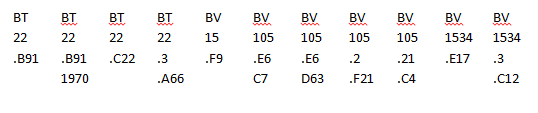
For more practice, try this game.
Searching for Missing Books
Check the correct location first—it might have been there all along, or made its way back.
Search on all sides of the book’s correct location. Keep an eye out for the title and author, too. Sometimes it is easier to spot a title or an author than a call number.
Look in every other major section of the circulating collection. For example, if the call number you are looking for is BS 101 .C5, look in BR 101, BX 101, BF 101.
Look at the call number and think about how else it might be misread. For example, if the call number is
BF 1001 .L5 C27
You might want to look in the following areas:
BF 1001.1 .L5
BF 1000 .L5
BF 100 .L5
BF 100.1
BF 1001 .I5
BF 1001 .C27
BP 1001 (sometimes the letters on the spine labels get smudged. F’s or R’s or B’s can look like P’s.)
B 1001
BRs and BSs often get mixed up with each other—BX, BV, and BT often do too. Judaica books that don’t start with BM sometimes end up with the BMs anyway (and downstairs), and Oversize books can end up stuffed into the regular stacks or vice versa, etc.
Sometimes there are several copies of a book, so check the barcode.
Write down where you searched and when on the back of the search form so the next person knows.
Shelf-reading
If there’s not shelving to do when you’re assigned stacks, you may shelf-read. It ‘s exactly what it sounds like.
When shelf reading, carefully scan the shelves to make sure the books are in order. Mark the call number you started with on the Shelf Reading Log. When you have finished, mark the call number you ended with on the shelf reading log.
If you find a damaged book during this process, put a note on the book and put it in Charlotte’s mailbox.
If you find books out of order, bring them upstairs to have their status checked.
Circulation Policies
Loan period for circulating non-reserve books, DVDs, CDs, and tapes:
Patron type |
Loan period |
Unseen renewals |
Faculty and Library Staff |
365 days |
3 |
Graduate Students |
90 days |
4 |
All others |
28 days |
4 |
REFERENCE/SUB-STUDY MATERIALS DO NOT CIRCULATE unless briefly to Faculty members.
For others requesting exceptions, see Chris.
Loan period for other item types, regardless of patron type:
Item type |
Loan period |
Overdue fine |
Periodicals |
3 days (+ 3 renewals) |
$1.00/day |
Laptops |
8 hrs (10am next day after 6pm) |
$7.50/hour |
Reserve books |
2 hrs (10am next day <1hr from closing) |
$0.60/hour |
Umbrellas |
1 day |
$1.00/day |
Headphones |
4 hours |
$1.20/hour |
A/V cables, VCRs, power strips |
8 hours |
$1.00/hour |
Patrons may RENEW certain items online a limited number of times. If they come with the item in hand, discharge the item and then check out again. Never use the “renew item” function on an item that is physically there.
FORGIVING a fine means we are doing the patron a courtesy by waiving their charges due to some extenuating circumstance. Only full-time staff should forgive fines.
ERRORING a fine means the fine was our mistake and the patron should not have been charged in the first place (e.g. item was not discharged by desk staff).
FINES are transmitted to student accounts around the 15th of each month. Fines under $2.00 are transmitted at the end of the semester.
We do not forgive overdue fines that have already been transmitted, but a student who was billed for a book’s replacement may be entitled to a refund on its return if we have not purchased a new copy—have them see MAT.
When we BILL for replacement, we charge a $35.00 cataloging fee plus a nonrefundable $25.00 billing fee in addition to the cost of the item itself. Patrons receive at least three notices by email before billing occurs.
Patrons are billed for a book’s replacement when it is 55 days overdue.
For recalled books, reserve items, and equipment, patrons are billed when the fine reaches $15.00.
When an item is recalled, the patron who has it checked out will have a week to bring it back. If they have had it less than 2 weeks, the recall will take effect on the 15th day.
All items kept in LOCKERS and CARRELS must be checked out to the student. They may lose their carrel/locker privileges if they are found to have items that are not checked out.
The answer to “who recalled it?”/“who has it checked out?” IS ALWAYS NO. THIS IS CONFIDENTIAL INFORMATION. (Exceptions: checked out to Interlibrary Loan, recalled for Reserve.)
COMMONLY USED PSEUDOPATRONS
| Pseudopatron Name | ID Number |
|---|---|
| New Book Shelf | 93743 |
| ILL | 203997 |
| Hold Shelf | 205166 |
| Faculty Document Delivery | 115774 |
| Recall for Reserves | 205505 |
| Kesler | 204051 |
| Missing | 203996 |
| Consider for Replacement | 204642 |
| Lost, to be Withdrawn | 204635 |
| Lost or Destroyed by Patron | 204482 |
Important ALTCIRC Rules
For Reserves: OVERNIGHT
For Laptops: LAPTOPOVER
Override Code
circul8
Divinity materials
Materials belonging to the Divinity Library are (or should be) marked DIV or DIVINITY.
Shelved behind the desk: Audio Cassettes, A/V Equipment, Reserve, Laptops
 There is not much demand for the cassette tapes, which are largely the Bible, as well as some of the Antoinette Brown and Cole Lectures.
The higher numbers are toward the right-hand end of the shelves.
Be careful on the ladder!
 Reserve items circulate for anywhere from a couple of hours to a couple of days. These are materials that professors have deemed essential for their students to have access to while taking a course.
Two hours is the default circulation period and usually a safe assumption.
Reserves can be checked out overnight within two hours of closing, and are due at 10am or an hour after opening (whichever is later) the next day.
Fines are $0.60 per hour.
We also have headphones, umbrellas, VCR/DVD players and A/V cables. These check out like reserve items and need to be discharged just like anything else when they are returned.
Shelved on 2nd Floor: Judaica, Reference, Media, and Periodicals.
 The book with the faded red Judaica label should go to Sarah to have a new one applied.
All BM call numbers are Judaica. There is a smaller quantity of books with other call numbers as well.
 Judaica Oversize books should be re-shelved immediately, not left in the sorting area.
 There are also bound periodicals that have the older red labels. We are not replacing these yet unless they are unreadable, but be aware of them. Always check an item’s location in the computer.
Periodicals can only be checked out to Faculty, Faculty Surrogates, and ILL/Document Delivery, except in special circumstances. Always discharge and re-shelve immediately.
 Most current periodicals are shelved with their older bound volumes. Some of the more popular ones are shelved in alphabetical order by title on the wooden shelves in front of the periodicals room. These will say “Display” on their label. Do an “Item Search and Display” on the title if you are not sure.
MANY periodicals will no longer be received in paper form.
 Except for Periodicals, all of our microfilm and microfiche now lives at the Annex. Annex requests for microform should usually be sent to Government Information on the 4th floor, as they have the only readers in the building.
Shelved on the 1st floor: Most books, Serials, Oversize books (and a few CD-ROMs, etc)
 Oversize books are just that: too tall to fit on normal shelves.
They are kept along the west wall of the 1st floor.
All of these spine labels denote an Oversize location in some fashion (including the “q”), but a book’s height is usually a good indication. An exception would be books in a series or set shelved at the same call number, of which some are oversize and some are not. These are generally shelved in Oversize. The spine label should tell you.
Books and other material shelved in the regular stacks on the 1st floor with have a spine label designation of Divinity or Div.
Sometimes a volume shelved on the 1st floor will look like a periodical but the Divinity library does not shelve it with the periodicals. Do a “Check Item Status” on anything that looks like it might be a periodical if you failed to note its location when you discharged it/marked it used. Or check the spine label.
Sometimes a white clamshell case will contain a CD-ROM or something similar and will belong on the 1st floor. Do a “Check Item Status” to be sure! Or check the spine label.
Report any question or problems to Sarah or MAT.
Annex Materials
Some library materials are housed at the Annex. This is off-site storage where we have moved items that don’t see a lot of circulation. Any patron (regardless of affiliation or if they have borrowing privilege) may request materials from the Annex, but the Annex itself is not open to the public.
In the public catalog, the record for a book stored at the Annex will look something like this:

The patron wanting the book should click the “Annex Request” button. This will bring up a form in which the patron will provide their name and contact information.
Deliveries of Annex items usually come twice a day on weekdays. Requests made by 9:30 a.m. will come in the morning run; requests made by 1:30 p.m. will come that same afternoon. There are no deliveries on the weekends and sometimes holidays have different messenger schedules.
Every library has items that it has sent to the Annex. That library still owns them and any problems with them should be dealt with through the appropriate circulation department. This is also the reason that Annex returns must first be transited back to their “home” branch.
*Note: All D. Min theses are housed at the Annex.
Books coming to us from the Annex will have a paper sash with routing information. Books we send back to the Annex (or to the Annex via their home libraries) need to be clearly marked. If the sash is missing, just write “Annex” on a piece of scrap paper and put it (securely) in the book.


(Coming to us) (Back to Central Annex) (Back to Div. Annex)
Place books going back to the Annex in the wire basket behind the service desk, below the hold shelf.
Books going to other libraries first are routed there as usual.
Processing Annex Books
Arriving requests come twice a day, around 10:30 and 3:30.
***Most of the time, they will already have holds on them for the proper patron. Discharge the book. Write the patron’s name on the slip that prints out and put the book on the Hold Shelf.
IF no hold comes up and you just get a “route/transit to Annex” or similar message:
- Under Holds in WorkFlows, click Place Hold.
- Using the User Search function (the little green guy with the magnifying glass), find the patron the book is for and click Place Hold for this User.
- Scan the item barcode into the Item ID field.
- Select No Recall from the Recall Status choices.
- Click the Place Hold button. Override the “hold not allowed” message if necessary.
- Now discharge the book. A slip will print out and you can proceed as normal.
Weird situations: visitors who request Annex material, etc.
Sometimes the hold on the book will be for the Hold Shelf with some note about who it’s actually for in the comments (this usually will only happen with unregistered patrons).
- Check the book out to the Hold Shelf (205166) but put the actual person’s name on the slip.
- Tape a note to the Annex sash (not to the book itself!!!) that says “Patron not registered: In-house use only.”
IF you can’t find the patron in WorkFlows (having tried both keyword and browse mode and searching with just the last name), there is a chance they may not be in the system at all. In this case, ask Sarah or MAT if possible, but if you’re dealing with this at all there’s a good chance they’re not here. So:
- Check the book out to the Hold Shelf (205166) but put the actual person’s name on the slip (as above).
- Take the e-mail printout that came with the book and write a note on it explaining. Put the note in Sarah’s box.
Returns from patrons (Div Annex books)
- Discharge the item.
- If it has a sash, cross out and change the To/From Div/Annex to make it clear it’s going back. If it has no sash, you can write “Annex” on a piece of scrap paper and stick it in the book.
- Put it in the basket above the hold shelf.
Returns from patrons (Central/Education/Science/Law/Anything not Div Annex books)
These will usually say something like “To DIV From ANX (Cen.)” WorkFlows will tell you in any case when you discharge them.
- Discharge the item. The system will tell you that the item is now in transit.
- Cross out/change the pickup information on the sash to make clear where it’s going, or write it on a slip that you stick in the book.
- Put the item on the appropriate shelf. Central Annex books go up to Central like anything else of theirs; ones from other libraries’ Annex holdings go on the Other Libraries shelf.
***NOTE: If an ILL staff member or student worker gives you Vanderbilt books as “returns from ILL,” treat them as you would returns from any other patron – discharge them using Acorn. This is not the same thing as patrons returning ILL books. You do not use ILLiad.***
Other libraries’ materials
When a book is “checked in” or “discharged” at a library other than its home one, it will show an IN-TRANSIT status. Books from other libraries may also transit to Divinity if a patron has chosen us as their pickup location for a recall or other request.
Central books returned to the Divinity Library are place on a shelf below the reserves. Central has requested that we do not discharge their books; just add them to the regular collection from the book-drop.
Biomedical, Law, Management, Music, Peabody, and Science books need to be discharged. A slip will print with the book’s destination. Put these on the “other libraries” shelf to be picked up by the messenger.
If the label has… |
The item probably goes to… |
Just a call number, CEN, Central, ARTS, Leisure Reading |
Central |
BIO (not always labeled) |
Eskind Biomedical Library |
Call number & barcode will look different; barcode label will say Law Library |
Law |
Mgt, Mgmt |
Management |
Mus, Music |
Music |
Educ, Peabody |
Peabody |
Sci, Science |
Science |
“Route/Transit to VU-CENTERS”
If you get this message when you discharge a book, you need to look at the book’s label to determine WHICH center it goes to.
Most common are books from the Women’s Center, the Center for Teaching, and the Family Resource Center, but there are others.
These returns MUST go in an envelope or box addressed to the correct center. There should be some interdepartmental mail envelopes in the red tray behind the desk, or there are some in Donna’s office.
Put the package in the same basket as the Annex returns.
THE COMPUTER WILL TELL YOU THE CORRECT PLACE TO SEND THE ITEM.
Hold shelf
Anything with a hold on it should be put on the hold shelf. When you discharge the book, a slip will print with the information on it. Be sure to put the slip in the correct book!
If the hold is for a regular human patron:
It goes under the patron’s last name, first initial (or full first name in cases where there may be confusion, or full first name and middle initial—e.g., Dryden, S. would be sufficient, but Smith, J. would not). Pay careful attention to who the book is for and make sure you are putting it under the LAST NAME OF THE PATRON—not the patron’s middle name, not the author’s name, not the Annex staff member's name (the biggest name on the paperwork that comes with Annex books is the staff member's name. The books are not for them).
Sometimes a patron who does not have a record in our system will request books from the Annex.
We keep the books on the hold shelf for them and they can use them in the library. In this case, the hold on the book would be for the Hold shelf with the patron’s name in the note field.
If the is for the hold shelf, do not write that on the slip. You need to do a “check item status” to find out who it’s for. The patron’s name will be in the “comment” field—or, if it is from the Annex, you can just look on the printout that came with the book (in the body of the email, not the bolded name at the top).
CHECK THE BOOK OUT to the Holdshelf (205166) and put the patron’s name on it.

If the hold is for a pseudopatron OTHER than the Holdshelf—such as a staff member’s office, Kesler, or Faculty Delivery—use the name of the pseudopatron (you can leave off the Divinity at the beginning). Place the book on the hold shelf as usual.
Interlibrary Loan (ILL)
Logging In:
- Open “ILLiad Share” and hit any key twice when prompted.
- Open “ILLiad Client”
- Enter username “divcirc” and password (in the envelope)
- Once logged in, leave ILLiad open all day.
Receiving ILL Materials from the ILL Office:
How to notify the patron that an ILL book has arrived:
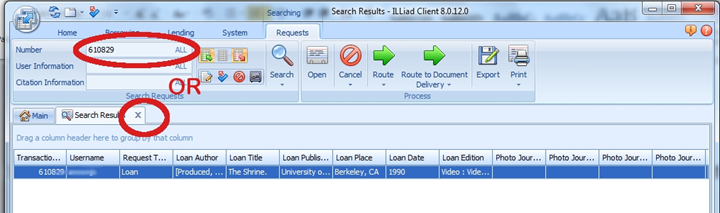
- Click into the “number” box. Sometimes ILLiad has a tendency to be slow, so make sure “TN” is selected at the right of the box. This will make sure it only searches Transaction Numbers, which are what the barcode is.
Scan the ILL barcode or enter the Transaction Number.

2. The specific request record will come up. Click on “Send Email”
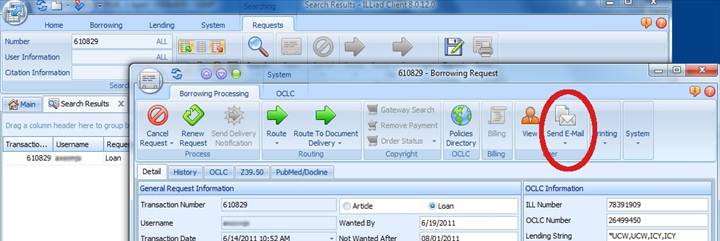
3. Then click on “Divinity Loan Arrived Notice.”
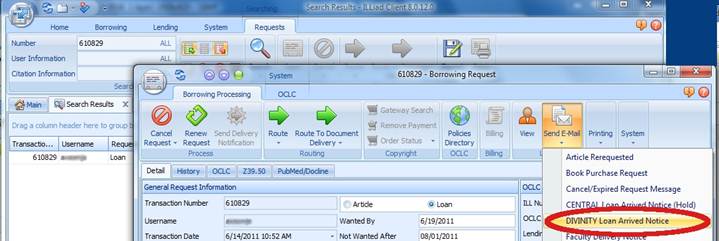
4.Make sure the “change status on send” button is selected—highlighted in orange—before you hit send!
5. Hit send to send the email and close the email window.
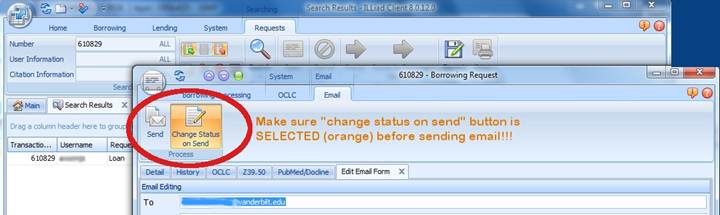
6. You can either enter/scan a new number to process another item, or close the Search Results tab and return to the main screen.
How to check out ILL (non-Vanderbilt) items:
- Click on the checkmark at the top of the main window.

2. Scan the ILL barcode or enter the transaction number.
“Customer Notified” and “Auto Process” should be selected!
This will check out the item to the patron.
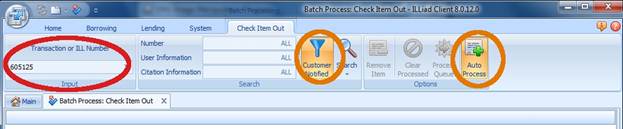
3. Scan/enter another transaction number or X out of the checkout tab.

Checking in ILL Materials Returned by Patrons:
How to process returns of ILL (non-Vanderbilt) materials:
- Click into the “number” box. Sometimes ILLiad has a tendency to be slow, so make sure “TN” is selected at the right of the box. This will make sure it only searches Transaction Numbers, which are what the barcode is.
Scan the ILL barcode or enter the Transaction Number.
2. The borrowing record will come up.
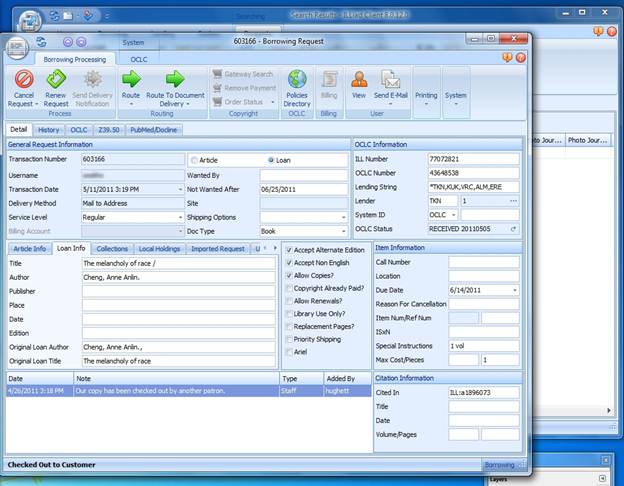
 NOTE: IF YOU SEE A GREEN DOT AT THE TOP OF THE BAR, THAT IS A SHORTCUT AND YOU CAN SKIP A FEW STEPS. CLICK ON THE GREEN DOT AND SKIP TO STEP 5.
3. If there is not a shortcut, proceed as follows:
a. Click on “Route.” You will need to scroll through a long menu.
b. “Routed to ILL for Return” is nearly at the bottom.
c. RIGHT-CLICK on it to create a shortcut and select “Add to Quick Access Toolbar” to make a shortcut for the next person.

4. Now click on the green dot that has appeared at the top of the request record’s window.
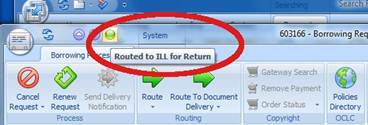
5. Confirm that you want to change the status of this item by clicking “Yes.”
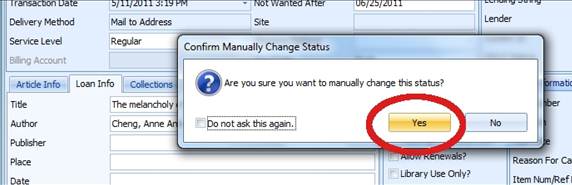
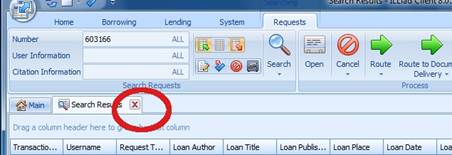
6. Close the request window and X out of the “Search Results” tab and you’re done. Place the returned item in the ILL basket.
Circulation Tasks in Workflows: The “Divinity Desk” Toolbar
Checking Out

- Click CheckOut
- Swipe the patron’s card into the User ID field.
- If the patron does not have their VU card, you may look them up by name if they have another form of ID.
- To look up a record: click
 (User Search) at top left. In Keyword mode, you can choose to look up by name, ALT_ID, or VUNetID (Web Authentication). Always confirm their details to make sure you are checking out to the right person.
 - Never check out to an account that is a name instead of an ID number.
- To look up a record: click
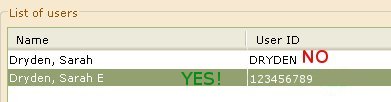
- Click on the correct user, then click “checkout to user.”
- Scan or type the item’s barcode in the Item ID field.
- PAY ATTENTION TO THE SCREEN. Pay careful attention to any messages that appear on the screen. You may be prompted for a piece count or override, or the material may not even circulate!
- Desensitize any books, CDs or DVDs.
- NEVER DESENSITIZE VIDEOTAPES OR AUDIO CASSETTES! THIS WILL ERASE THEM!
- Advise the patron of the due date and send them on their way.
- Offer them a bag if it’s raining or if they have a lot of books.
Patron Type |
Loan Period (regular books) |
Renewals (unseen) |
Faculty & Library Staff |
365 Days |
3 |
Graduate Students |
90 Days |
4 |
Everyone else |
28 Days |
4 |
Discharging
THIS IS NOT THE PROCEDURE FOR CHECKING IN ILL MATERIALS!!!
This IS the procedure for checking in VANDERBILT BOOKS, no matter where they come from.

- Click Discharging
- Scan/type the barcode number into the Item ID field.
- PAY ATTENTION TO THE SCREEN!!!!
- If you don’t click “OK” or otherwise deal with any message that pops up, the item in your hand as well as the one after it will not discharge. This is BAD.
- The screen also shows you where the item should be shelved or sent.
- When in doubt, discharge again. It won’t hurt anything.
- If there are not holds/routings or other issues, re-sensitize books/CDs/DVDs and put them into their proper sorting section to be shelved.
- Reference/SUB-STUDY, Periodicals, and Judaica Oversize should all be re-shelved ASAP, not placed in the re-shelving area behind the desk.
- We don’t discharge Central materials. Just put them on the Central shelf and add them in when the Central staff come to get the book-drop returns.
- We DO discharge items from other VU libraries. They must be marked with their destination and put on the “OTHER LIBRARIES” shelf.
- Exceptions: Music Library CDs and books belonging to VU-Centers need to go in a box or a padded envelope. Please not that “VU-Centers”IS NOT A VALID LOCATION. You have to look for identification on the book itself, do an “Item Search and Display,” or look it up in the public catalog to determine WHICH Center library it belongs to.
- Reserves and laptops need to be discharged and re-shelved immediately. You may have to respond to more than one pop-up alert and type in overrides.
PAY ATTENTION TO THE SCREEN.
Display User

Use this function to see:
- Expiration date and user categories (Summary tab).
- A patron’s contact information, including email (Addresses tab).
- What a patron has checked out/when their books are due (Checkouts tab).
- You need to see where a patron’s hold is (Holds tab).
- You can also view expired holds by changing the “hold type” drop-down from “Active” to “Inactive” or “All.” This is useful when a patron is trying to pick up a hold that seems not to be here.
- How much money a patron owes and what for (Bills tab).
Renew User

Use this function to renew some or all of a patron’s books. Only renew what is due or overdue.
Do not override the renewal limit!
Patrons may renew their own books online by logging in to their patron record. If more than five books are overdue, though, this function is blocked.
If the patron has the books with them, discharge them and check them back out. Do not use the renew function if the item is physically here.
Mark Item Used

Use this function for materials (including Reference and Periodicals!) found on tables, carts, etc. at the end of the night or in the course of the day.
This registers an “in-house use” count that helps us get an idea of how much action an item is seeing.
Watch for any alert messages that may pop up! Sometimes an item may have been checked out, may be missing, or on hold, and MUST BE DISCHARGED before routing to its proper location.
Check Item Status

ALWAYS USE Check Item Status IF YOU ARE NOT ABSOLUTELY 100% DEAD CERTAIN OF WHAT SHOULD BE DONE WITH AN ITEM – or where it goes, or if it is checked out, etc.
Item Search & Display
The Call Number/Item tab tells you pretty much anything you need to know about an item:
- Call number, barcode, and location
- Who has it checked out (do not divulge this information to anyone else)
- When it’s due
- If it has holds
- Who owes or has owed money on it
- When it was last discharged (especially useful if a patron is having trouble finding the item—recently-discharged items may not yet be back on the shelves, and last-discharged-in-1998 items may be gone for good).
And lots more, but those are the most common reasons to use it.
Searching in BROWSE mode allows you to type in a partial title, author name, call number, etc.
- Tip: you must leave off articles, even in a foreign language. Das Boot is searched under Boot.
Searching in KEYWORD mode will find anything that has all your words in it, no matter the order.
Searching in EXACT mode is best to use only if you are putting in the barcode.
Modify Title
This wizard looks very much like Item Search & Display, except that you can edit the information.
Use this only if you have been specifically told to do so.
Assigning Barcodes
- Get the sheet of double barcodes out of the Reserve drawer. Make sure you take a matched pair and stick both on the item: one on the front of the envelop and one on the back .
- Look up the item by title and find the correct issue/volume within the record.
- Scan the new barcode into the ITEM ID field, over the top of the strange-looking number that’s already there.
- Press the SAVE button at the bottom.
Paying Bills
- Click “Pay Bills” from any “User is Delinquent” screen
or
Select Paying Bills and swipe/look up patron’s ID.
- Enter the amount paid and select CASH or CHECK (Central can take credit cards)
- If the patron is paying their whole balance, you can enter it in the top box.
- If the patron is only paying part of their fine/for specific items, you need to enter the amount next to each individual item paid for.
- If the patron needs a receipt, print the screen after the payment is entered.
- Under FILE, select PRINT SCREEN. The screen will “print” itself to Word and you can print it out from there.
- Enter the payment on the daily cash log.
- If you happened to notice that the fine was for a book from another library, it is helpful to write that in the “notes” section.
- We ERROR fines when it was our mistake—we forgot to discharge something, the due date was wrong, the power was out when the laptop was due, etc.
- Select ERROR instead of CASH or CHECK and note in the appropriate section on the front side of the cash long, along with the reason.
- If a patron wants us to FORGIVE a fine (because of extenuating circumstances or as a courtesy), refer them to Sarah or MAT.
Laptops
Policies and FAQ for Circulating Laptops
What kind of laptops are they?
The laptops are Dells. Peabody also has iBooks available.
What software is available?
All library laptops are loaded with the Microsoft Office Suite, which includes Word, Excel, and PowerPoint. Additionally, you will have full access to the Internet. However, some library databases will NOT be available from the laptops and must be accessed from a library workstation. Check with your local library for details.
Who can check out a laptop?
Faculty, staff and students with a valid Vanderbilt University ID.A valid email address is also required.
How long can it be checked out? Can it be renewed?
Laptops are checked out for eight (8) hours and may not be renewed. Laptops can go out overnight if checked out after 6:00p.m. or if the library is closing before 7:00pm, overnight check out can begin one hour before closing time.
May they be taken out of the library?
Yes. Also, they may be taken out overnight as specified above.
Can I reserve a laptop?
No. Laptops are provided on a first come, first served basis. Particularly in heavy use times of the semester, you should not expect to be able to charge the laptop back out immediately after returning it.
How do I check one out?
Where can it be returned? Laptops are available at the circulation desks of the following libraries: Central, Science and Engineering, Divinity, Education, and Music. For your protection, laptops must be returned to the circulation desk of the library from which it was borrowed and you must personally deliver it to a staff member. DO NOT RETURN A LAPTOP TO A BOOKDROP! Circulation staff will then check to make sure all accessories have been returned and the computer works properly. You will then be provided a receipt that will prove that you returned the laptop.
Are there overdue fines?
Yes. Overdue fines are $7.50/hour and are non-refundable. Please return the laptop on time.
If all the laptops are checked out, what can I do?
The laptops will be visible in ACORN, the libraries' online catalog. You should look and see if another library on campus has one available. You can see the ACORN record for the laptops by doing a keyword search on "Dell Latitude".
Can I load my own programs onto the laptop?
The systems are "locked down" so you will not be able to do this. In any case, the laptops are equipped with software that restores the computer to its initial state when re-booted.
How do I save my work?
There is an icon on the desktop that will connect you to VU-Space where you may save your work. Also, there is a floppy drive available. USB "thumb drives" can also be used with the laptops now.
What about printing?
Laptops are configured to function with VUPrint.
Are there other restrictions on what I may do with the laptop?
All computing at Vanderbilt is regulated by the Guidelines for Computer Use, which can be found here.
Where do I go/who do I call if I need assistance?
Notify a library staff member immediately.
Laptop Checkout Procedures
- Check that the case contains the correct laptop, along with the power cord, Ethernet cable, and mouse. DO NOT CHECK THE LAPTOP OUT IF ANYTHING IS MISSING.
- Key or scan the barcode into the Item ID field on your checkout screen. DO NOT ENTER THE OVERRIDE IF ANYTHING IS MISSING FROM THE CASE.
- Fill out the appropriate information on the laptop receipt. Copy down the due date and advise the patron of it BEFORE they sign the slip.
***There are several possibilities for due dates:
- Before 6:00 pm, the laptop is due in 8 hours or at closing, whichever comes first.
- After 6:00 pm, the laptop is due at 10:00 am the next morning. Select LAPTOPOVER from the “alternate circulation rule” drop-down menu.
- If we open after 10:00 the next day, LAPTOPOVER will not work—use the “Special Due Date” function to make it due an hour after opening. See next page for instructions.
Laptop Discharge Procedures
- While the patron is still standing at the desk, check that the case contains everything it should. IF ANYTHING IS MISSING, DO NOT RETURN THE LAPTOP TO THE CABINET. Take down the necessary information and advise the patron that they will be billed for the replacement of the missing items. Let MAT and Sarah know.
- As long as everything’s there, check off and sign the slip. Give it to the patron if they want it, or recycle it if they don’t.
- Check the battery level via the button on the bottom or turning the laptop on. Plug it in if it doesn’t read close to full.
- In the checkout screen BEFORE you type the barcode, select the picture of a calendar, which is the “Special Due Date” widget.
- Select “for this checkout only” and click next to the white box. Normally what you’ll be putting in is noon Saturday or Sunday. During breaks you may have to do this during the week.
- Ask for the patron’s Fisk ID. Make sure there is a sticker on the ID to indicate patron is enrolled for the current semester.
- Take a “Fisk University Patron Record Temporary Info Sheet” out of the folder in the left side file drawer.
- Attempt to swipe the Fisk ID into a checkout wizard using one of the card readers.
- If the card swiped successfully, write the number that comes up in the appropriate place on the Info Sheet.
- If no number came up, apply one of the 6-digit ID stickers to the back of the Fisk ID, and write down the 6-digit number on the Info Sheet.
- Ask the patron to fill out the rest of the info sheet.
- Write down the barcode numbers and titles of any items the patron wants to check out.
- Put the completed info sheet in Sarah’s box.
- Most of our computers are Windows 7 PCs.
- The multimedia workstation at the large desk in the computer area has extra software and an attached flatbed scanner.
- There is one Mac in the Periodicals room.
- The CD-ROM workstation in the periodicals room is locked down to specific database functions.
- The computer in the stacks is limited to searching the library catalog.
- Look up its call number and go check the stacks before the patron leaves. About half the time it’s either right where it’s supposed to be or just a little way off. Look at the books surrounding it and above and below it. We want the patron to have the book as quickly as possible.
- If the book is not found on this first go, then have the patron fill out a search request form.
- If they believe they returned it, ask them to check very carefully among their own books again.
- If you or your co-worker have time, start checking other locations in the stacks. Check the same number with different letters, missing digits, misplaced decimals—think about how you might misread it. Write on the back of the form where you have searched, and when.
- If you don’t have time/are alone or the book is still not found, leave it in the top red tray on the back counter.
- If you come to work and there are forms in the “new searches” tray, please continue the search during your stacks time if there is not shelving to do.
-
Ask the patron which denomination they would like. If the print job is too large for the amount of money on the card, it will not print.
-
Fill out the card number (it will look like zzz123456), denomination, payment method, and your initials on the daily income sheet.
-
Write today’s date on the card. The funds are good for 90 days.
-
The patron can print by putting the zzz number in the username field of the Pharos dialog. They do not enter a password.
- Hit 1 to silence so you can think straight. Call Sarah, MAT, or Bill to help you if they are here.
- See which number has a * below it. Each number corresponds to a part of the building and is listed on the card near the panel.
- 1 and 2 are our partitions. If you set them off at opening, put in your code and disarm as usual. You will also need to call VUPD (2-2745) to tell them there is no problem.
- Partition 1 is also connected to the exhibit cases and monitors out in the gallery. If nothing seems to be wrong, try to disarm. It may take several disarm commands before the alarm stops.
- If it’s 5 or 7, that’s Special Collections, either the vault or the offices. You need to call them at 2-2807 and tell them what’s going off.
- If the Bandy Center (6) goes off, call them at 3-0372. If there is no answer, you should call Central and inform them that this alarm is going off.
- the door onto the breezeway near Judaica
- (resets with the magnet on the "Judaica & Electronic Classroom" bookend)
- the door into the mailroom/staff lounge area from the 1st floor stacks
- (resets with the elevator key)
- the two doors in the Electronic Classroom.
- (resets with the key on the "Judaica & Electronic Classroom" bookend)
- If anyone approaches you alleging to be a law enforcement officer requesting information identifying the names of library users and does not have either a subpoena or a warrant, ask for identification and do not disclose any information. Explain that the library does not give such information as a matter of policy and begin calling the supervisory contact list at the bottom of this page.
- If a law enforcement officer presents a subpoena, ask for identification and direct either the person or the paper to the Director of the Divinity Library. Subpoenas do not have to be dealt with immediately. The Director or designee will in turn direct it immediately to the Vanderbilt University General Counsel Office, and notify the office of the Dean of Libraries of the receipt of a subpoena.
- If a law enforcement officer presents a warrant, ask for identification but do not interfere with their search or seizure. Immediately contact the first available person on the supervisory contact list (below). That person will immediately contact the Vanderbilt University General Counsel Office, and inform the office of the Dean of Libraries. In the event that someone from the supervisory contact list or General Counsel Office does not arrive before the law enforcement officers leave, be sure to get a copy of the list of items taken, which the law enforcement officer is required to provide. Do not discuss the incident with people who were not involved without asking your supervisor or General Counsel. Some warrants do not allow any discussion under penalty of law.
- Notify EMS (2-2621). EMS SHOULD notify Plant Ops and VU Police. If VU Police has not arrived within 10 minutes of your call to EMS, call VU Police (1-1911).
- NOTIFY FUNCTIONAL COORDINATOR—Bill Hook (3-8350; 833-2605; 293-0338). If he is not immediately available, someone in Dean’s Administrative Group should be available as the alternate monitor.
- NOTIFY DIVISION DIRECTOR -- Bill Hook (3-8350 office). If he is not available, notify Donna Smith (3-8517 office)
- NOTIFY EMS (2-2621). EMS SHOULD notify Plant Ops and VU Police. If VU Police has not arrived within 10 minutes of your call to EMS, call SECURITY (1-1911).
- NOTIFY SUPERVISOR -- Public Services Supervisor, EWS or full-time staff person (if present).
Overnight Laptop Checkout on Weekends/Breaks
If the library opens after 10:00 am the next day, you will have to set the due date manually.

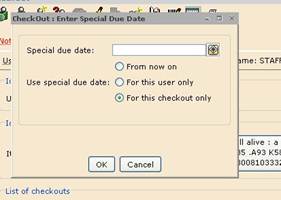

***You can also use this method if LAPTOPOVER isn’t working for some reason. Normal weekday due date is 10:00 am.***
IF SOMETHING DOESN’T WORK RIGHT, PLEASE SEND A DESK ISSUE REPORT BEFORE YOU LEAVE!
Patrons and Library Access
Patron Registration, Renewing Privileges, User Not Found
Vanderbilt is issuing new ID cards to all users to remove the social security numbers from the magnetic stripe.
For right now, refer to the spiral-bound re-carding guides on the desk to determine what to tell someone, but DO NOT PUT ANY NEW VANDERBILT AFFILIATED PATRON RECORDS INTO ACORN.
If a faculty/staff member or student has a card and is not in the system, there is nothing we can do. They need to sort it out with Human Resources or the Registrar. If they just got the card, they should try the next day.
IF YOU CREATE A RECORD FOR A CLERGY PATRON, PLEASE HAVE THEM FILL OUT ONE OF THE APPLICATION SHEETS SO THAT THE RECORD CAN BE CHECKED BY MAT.
Borrowing Privileges
**Due the University issuing new cards with randomly-generated ID numbers, we cannot create any patron’s record if they do not first have this card.**
Local Clergy
We grant borrowing privileges to local clergy and employees of religious organizations. The forms are in the drawers by the left-hand computer and have the specifics for determining eligibility.
You may have them fill out the card office form and sign off on it, but they will need to come back once they have the card to have Sarah or MAT put them into Acorn.
Local Jewish Community
This is the same as the clergy privilege, but any member of the local Jewish community is eligible.
You may have them fill out the card office form and sign off on it, but they will need to come back once they have the card to have Sarah or MAT put them into Acorn.
Sewanee Students
Current students at Sewanee should now have records already in Acorn. Swipe their card or look up their name—the correct record will have a strange-looking ID number.
Fisk Students
Procedure to register someone for Fisk borrowing privileges:
Faculty at Other Institutions
Vanderbilt has reciprocal agreements with other institutions for faculty borrowing privileges. If someone needs this set up, they need to see Robyn Harris on the 6th floor.
General information is on the main library website at http://www.library.vanderbilt.edu/access/
Kesler
Kesler is a by-mail lending library service predominately for ministers in rural areas who do not have access to a theological library.
Patrons with questions about Kesler should be referred to Sarah or the Kesler website at http://divinity.library.vanderbilt.edu/kesler/
Public Workstations and Internet Access
If a patron needs to use a specific program or piece of equipment, everything available systemwide is listed at tech.library.vanderbilt.edu.
All public computers (and circulating laptops) are “frozen.” This means that when they are rebooted, any changes made by the user are erased.
Most of the computers in Divinity must be logged into with a VUNetID and password.
There is a guest login for alumni and local clergy, which can be found here (restricted file).
There are three unrestricted workstations, which are located at the lower table on the left side of the computer area.
The wireless connection is limited to faculty, staff, and students, but open wired connections are available in the Reference Room.
While there is no explicit policy stating what is and is not allowed to be done on the computers (other than illegal activities), a patron may be asked to cease an activity that is disruptive to others.
Minor children are not permitted to use the computers without a parent or guardian’s presence, since we do not filter our internet.
Books With Problems
Lost Books
Whether a patron believes they returned something or simply cannot find what they are looking for on the shelf, the procedure is the same.
If you find a book for a patron who believed they turned it in, discharge it and send them an email to let them know (or send Sarah an email to let them know if you are uncomfortable doing it yourself).
If you find a book that a patron wanted and was having trouble finding, place a hold on it for them (will require the “CIRCUL8” override), and then discharge it. They will be sent a notice in the morning.
Billed Books
At this point, most books that have been billed will have a hold on them for Sarah’s office, but some may not. Anything that pops up the alert “Patron was billed! Show item to supervisor!” should go to Sarah.
Damaged Books
Cover falling off? Pages torn? Wet? Looks like something chewed on it? Charlotte is the lucky recipient of these books.
If there is any sort of dubious substance, please put the book in a plastic bag and keep it from touching any other books.
Review the guidelines in the Preservation slideshow if you are unsure what constitutes damage, but it’s always better to err on the side of caution.
Other Library Services
Lockers
We offer lockers to Divinity/GDR students only. Other patrons may request a locker from the Central Library. Students reserve lockers through an online form and will be contacted by Donna with the details.
Carrels
The carrels downstairs are assigned through the GDR to students taking qualifying exams or writing dissertations. Anyone may use them temporarily if they are not reserved, but not leave personal belongings there overnight.
Seminar/Group Study Rooms
Reservations for rooms 221, 224, 225, and 226 are to be submitted online. The reservation form, schedules, and policies, are linked from the library homepage. If there is not a reservation on the calendar, students may use these rooms for group study.
Students may not reserve the Electronic Classroom. We generally open it for student use around finals time.
Printing
Our printing system is called Pharos. The cost of printing is 5 cents per page.
For current faculty, staff, and students:
Patrons who have a VUNetID can pay for print jobs by adding money to their Commodore Card. This can be done online at Vanderbilt.edu/commodorecard with a credit card or in person at the card office. Students may also add funds directly from their student account.
These patrons can print by entering their VUNetID and e-password into the Pharos dialog, or send a job from their own computer and swipe their card at the print release station.
Information for users is at vuprint.vanderbilt.edu.
We sell guest printing cards at the desk in denominations of $1, $2, and $5. The cost is the same as with a VU card, 5 cents per page.
To sell a guest printing card:
Printing troubleshooting:
Pharos only keeps records of print jobs for 1 hour, so problems need to be reported promptly or we won’t be able to do anything for the patron.
Pharos procedures (EWS and full-time staff only)
Pharos
EWS students and full-time staff have Pharos admin logins to view the print queue.
Your username is your VUNetID with ad on the end (so, drydense à drydensead)
Your password is your birthdate in MMDDYY format.
Job Management
Queued Jobs:
In the Queued Jobs section, you can see all of the jobs waiting in the general queue. These are not jobs that are in the process of printing—these are jobs that patrons have sent from their own computers and will release at the print release station.

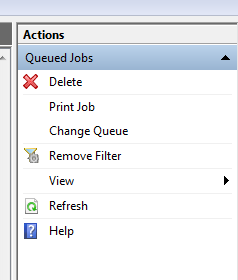 With the Actions panel at the right hand side, you can delete a job from the queue. Jobs will eventually leave the queue on their own if the patron does not release them.
Do not use the Print Job command here, as the patron will not be charged.
Printed Jobs:
In the Printed Jobs section, you can see jobs that have printed. The patron was charged for anything appearing here. These jobs can be sorted by any column. JOBS PRINTED MORE THAN AN HOUR AGO CANNOT BE RETRIEVED.
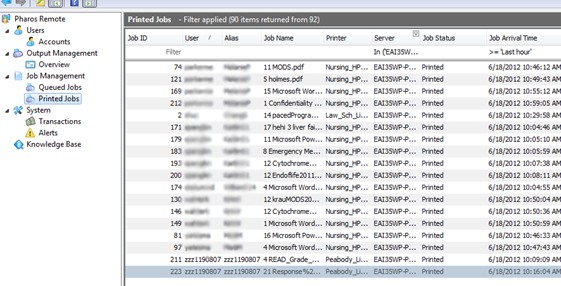
The bottom panel will show you where the job printed (or should have printed) and how much it cost.

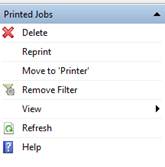 In the Actions panel, you can delete, move, or reprint jobs.
Reprinting a job from this panel does not charge the patron, so should only be done in cases of malfunction.
Moving a job can be done when the patron has sent the job to the wrong printer, or there is a problem with the printer it was sent to. Our printers show up in Pharos differently than they are labeled.
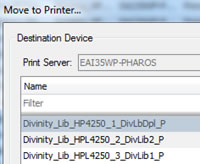
DivLbDpl_P is the 2-sided printer.
DivLib2_P is in the Periodicals room.
DivLib1_P is in the computer area.
System
Transactions:
In the Transactions section, you can see whether or not a patron was charged. The list can be sorted by any column.

When you have clicked on the job you want, the bottom panel will show you more information.
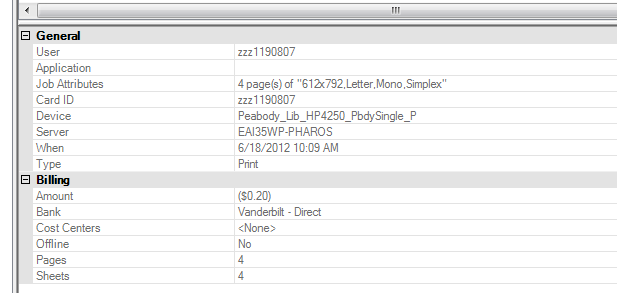
If the patron should not have been charged (this usually only happens if a printer has seriously malfunctioned during a job), note down their VUNetID and the time and cost of the print job. Send this in a Desk Issue Report.
If the erroneous charge happened on a guest card, the patron will need to see Donna.
Never give out cash refunds for print jobs.
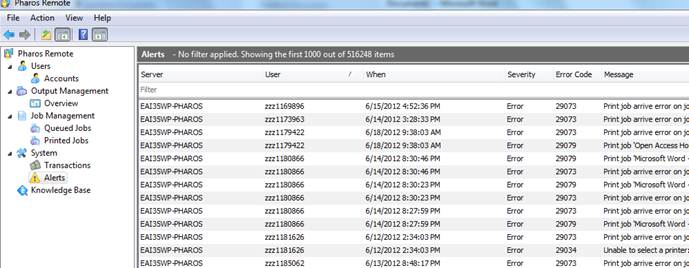
In the Alerts section, you can find all the print jobs with errors. The list can be sorted by any column.
When you have clicked on the job you want, the bottom panel will show you more information about the error.
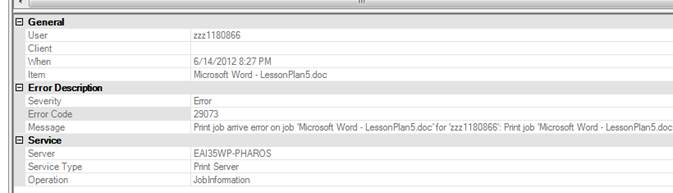
Common ‘Print job arrive error’ messages:
User did not accept cost: user declined to continue on the screen showing the cost when prompted
The system could not log you on: incorrect username/password entered
Not enough money to print job: the card doesn’t have enough money on it (the balance must be enough to print the whole job)
When a job shows up in the Alerts, the patron has not been charged any money. They need to retry printing the job.
Disasters & Crises
IF YOU ARE IN AN EMERGENCY SITUATION, DIAL 1-911.
The non-emergency VUPD number is 2-2745.
Fire Alarm
If the “Plant Operations is conducting a test” message does not come over the intercoms, you need to start evacuating the building. The clipboard, walkie-talkie, and instructions are in the drawer labeled “EVACUATION.”
IF YOU CAN ACTUALLY SEE SMOKE OR FIRE, JUST GET OUT!!!!!
Burglar Alarm
If the alarm behind the desk is going off:
IF NO FULL-TIME DIVINITY STAFF ARE HERE AND YOU HAVE A PROBLEM WITH THE ALARM PANEL, CAN’T SHUT SOMETHING OFF, GET A WEIRD MESSAGE, ETC, THERE IS ALWAYS A FULL-TIME STAFF PERSON IN CENTRAL. OTHERWISE, BILL HOOK IS THE CONTACT PERSON. HIS CELL AND HOME NUMBERS ARE ON THE CARD BY THE PANEL.
Door Alarms
If you hear a faint buzzing sound coming from somewhere, there may be a door alarm going off. The ones between the 2nd and 4th floors in the stairwell belong to Central and they will deal with it.
Doors that we deal with are:
Flood
After a great deal of rain, sometimes water will seep in the back corner of the area behind the desk (where the coat hooks are, behind the safe). If you notice this happening, please call Housekeeping (weekdays) or Plant Ops (nights/weekends) to wet-vac the carpet and set up a fan.
Problem Patrons
IF SOMEONE IS DANGEROUSLY ANGRY, THREATENING YOU OR SOMEONE ELSE VERBALLY OR PHYSICALLY, OR ACTING IN ANY OTHER DISRUPTIVE MANNER YOU DO NOT FEEL COMFORTABLE DEALING WITH AND NO FULL-TIME DIVINITY STAFF ARE AVAILABLE, YOU SHOULD CALL VUPD (1-1911).
Any incident needs to be reported AT THE VERY LEAST by email to MAT.
Patriot Act
The following procedure is to be followed should a member of a law enforcement agency requests information or records at any of the libraries in the Jean & Alexander Heard Library system:
Should you have any questions or concerns about the above procedures, please discuss this with your supervisor or the Director of the Divinity Library.
Contact list (restricted) for Patriot Act inquiries. Starting at the top of the list, call until you reach ONE of the persons below. Having reached one person, you can stop—you do not need to continue down the tree.
Emergency/Evacuation Plan
EMERGENCIES
If you have problems with flooding, severe weather, extreme building temperature, bomb or biological threats, etc., call:
Bill Hook (3-8350 office; 833-2605 home or 293-0338 cell phone).
If you cannot reach them, call VU Police at x 2-2745.
FIRE:
If you can determine the location of the disaster quickly, do so. CALL EMS (Emergency Management Service at x 2-2621 and give them the information you have on the situation.
If warranted, proceed with evacuation of the library. One staff member calls EMS, while the other notifies all patrons.
If you feel capable of using the fire extinguisher to control the situation, do so. DO NOT RISK YOUR LIFE in extinguishing a fire.
VU Police will want to investigate the fire and they should be on the scene by the time you have evacuated the building.
There is a disaster clean-up kit in the Public Services near the alarm panel area.
WATER:
If you have flooded areas, STAY OUT! You could be electrocuted if you step into a flooded area.
If you can solve the problem by placing a wastebasket under a leak or throwing plastic sheeting over the books shelves, do so.
Call Plant Operations if there is considerable water or related problems like power failures at x 2-2622.
There is a disaster clean-up kit in the Public Services near the alarm panel area.
INJURIES:
For personal injuries or accidents call VU Police at x 1911.
THREATENING PATRONS:
If a patron THREATENS you or is aggressive or physical in a way that is inappropriate, call
VU Police at 1-911.
SEVERE WEATHER:
In the event of severe weather, the weather radio at the Public Services Desk and Collection Development will automatically announce the information concerning where and what type of severe weather is approaching. If the severe weather is in the immediate area the campus weather alarms will also sound. Also if necessary an announcement will sound over the library PA system. Please alert all patrons to move to the interior-most area of the building away from all windows. For level 2 this would be the periodicals area, for level one this would be the stacks.
DATA & SECURITY
Library Information Technology
BOMB THREATS:
BIOLOGICAL AGENTS:
PERFORMING CRITICAL FUNTIONS CONTINGENCY PLAN
Library Disaster Action Information Sheet
Divinity Library -- General Library Building
In any emergency, try to STAY CALM. Panic will only aggravate the problem. RETRIEVE ANY NEEDED ITEMS FROM THE DISASTER KIT IN PUBLIC SERVICES.
Emergency Notification Check List
8:00 am - 5:00 Weekdays
The supervisor present, or the senior staff person present should be responsible for notifying the Division Director, who will contact the library’s DISASTER RESPONSE ACTION TEAM (DRAT), Notification should proceed according to the list below: Contact the FIRST PERSON AVAILABLE on this list. Please note that you do not have to call everyone on the list, just the FIRST one you are able to reach.
1. Division Director: Bill Hook, Cell 973-1631; Office 3-8350; Home 833-2605
2. Associate Director: Eileen Crawford Office 3-9880
(DRAT Team Members)
2. Sue Davis -- Daytime 22464; Nights/Weekends -- 371-8956
3. Juanita Murray -- Daytime -- 22807; Nights/Weekends -- 352-6551
Evacuation Plan For Divinity Library
When the alarm sounds this indicates that the building must be evacuated. The staff of the Divinity Library will follow the procedure outlined below to ensure an orderly evacuation of all persons.
If the fire alarm should go off for any reason, the staff will be responsible for evacuating all patrons in the Divinity Library. One staff member should search for patrons in the basement, Judaica and the Reference Room in order to ensure that everyone in the library leaves quickly and safely. Persons should exit through the main entrance so long as it is safe to do so. Otherwise, emergency exits are located across from the circulation desk, in the Judaica room, and downstairs by the staff lounge. One staff person should remain at the circulation desk at all times during the evacuation. The last person to leave should lock the front door as s/he exits.
I. Evacuating Stack Level I
[Evacuation Paths from Stack Level I]
The Public Services Supervisor (alternate: senior staff member on duty in Public Services area) will designate one staff person present to go downstairs to evacuate patrons from the first level. This person is to direct all patrons out of the stacks, and verify that no patrons remain downstairs.
When there is no physical evidence of a fire present (i.e., no smoke or fire evident, but the alarm is sounding), an orderly evacuation up the center of stairwell to Stack Level II and out the primary exit is preferred.
The staff member will proceed down the East wall aisle, to verify that all carrels are vacated and patrons are leaving. Knock on all carrel doors to be sure all occupants hear the evacuation instructions.
After completing the East aisle, move back down the center aisle, checking between stack rows. Finally, proceed back down the West aisle, checking each carrel and concluding with both typing carrels.
If there is visible evidence of a fire, or in the judgment of the staff member an imminent danger posed by attempting to exit upstairs through Stack Level II, evacuation instructions to patrons should point them to the nearest emergency exit on Level I - either the door down to the new wing, or up the south stairwell to the quadrangle side of the building.
For both Emergency Exits from Level I, instructions on how to exit the building after passing through the fire exit doors should be given. There are RED "EMERGENCY EXIT" signs pointing to the exit, bit the path is still not absolutely obvious.
If a patron refuses to leave, do NOT try to force him/her. Note their location and report to the door monitor that there is a patron who refuses to leave. VU Police will handle reluctant evacuees.
If a handicapped person is unable to leave via the stairs (elevators will be inoperable) and assistance is not available to help them, have them move as close to an emergency exit as possible, and notify the door monitor that a patron remains in the building who is in need of assistance.
The best route to evacuate a person in a wheel chair is probably down the loading dock. A lift (key operated) (4774) can move the wheelchair down to the loading dock level - a loft at the loading dock can move them down to street level.
II. Evacuating Stack Level II
[Evacuation Paths for Stack Level II]
Because an evacuation alarm may occur at any time and there is no assurance that a full time staff person will be present in the Director’s Office, the Public Services Coordinator or Administrative Assistant will designate a staff member to see to evacuation of staff offices and public areas on Stack Level II.
Proceed first to the Zimmerman Judaica Room (Room 223), instructing any patrons met on the way to evacuate through the front door of the library. (If visible evidence of fire is present, direct them to the nearest emergency exit.) In the Judaica Room verify that the Seminar Rooms are empty.
Return through the Judaica Room, checking each carrel and work table for patrons not already notified to evacuate. Walk along the aisle near the windows, to the Western end of the Reference Room, and check each of the assigned carrels on the West wall. (In the event of imminent danger from fire or smoke, exit through the windows in the Reference Room
After clearing the Judaica and Reference Rooms, proceed back to the Administrative Suite and the Periodical Stacks. Verify that there are no patrons in the periodical stacks and that no persons remain in the Administrative Suite or Periodicals Assistant’s Office.
If any patrons remained in an area after the staff asked them to evacuate, it will be necessary to return to that area after finishing the sweep, to verify that each room has been fully evacuated (assuming no imminent danger from fire or smoke is present). If a patrons remains after a second warning, the staff member is NOT responsible for bodily removing them. Seek a supervisor or another staff person to help (if it seems there is no immediate danger) but if persuasion fails, call for a security officer to deal with a truculent resistor. (Notify the Door Monitor at the breezeway or lawn side).
III. Evacuating Collections Offices (South side suite)
The Circulation Supervisor or Public Services Librarian should call (ext. 22566) the Collections Development suite (Rooms 216) to see if any staff are working in the suite on the South side.
If a staff member answers, they should be delegated to evacuate the office suite. If no answer is obtained, a visual check of the area must be done by the Circulation Supervisor or Public Services Librarian, AFTER the North side has been fully evacuated.
Evacuation from the Collections suite would typically be out through the Reserve Room entrance, if there is no visible threat present. If imminent danger from fire or smoke is evident, evacuation should be up the fire exit stairwell immediately outside the suite entrance. (If time allows, the entrance door to the suite should be locked to secure the area when the last staff member leaves).
The senior staff member present will remain as the last person to vacate the library after confirming that all patrons have left the library. The doors to the building (breezeway door and library lawn side) will be monitored by designated staff from the Central Library to prevent patrons from returning to the building prematurely. They will also be the contact person with Security to notify them if patrons remain to be evacuated from the building.
The last staff member to leave the Divinity Library should notify one or the other door monitors as to the status of the Divinity Library evacuation. If they do not need your assistance otherwise, proceed to one of the designated evacuation areas.
IV. Evacuation Waiting Areas
Patrons should be instructed as they leave the library to proceed to the designated areas clear of the building. THEY SHOULD NOT REMAIN IN THE BREEZEWAY! Evacuation areas should be on the Divinity School Lawn (by the parking lot off 21st Ave., North of the General Library Building), or on the "Library Lawn" on the West side (campus) of the building.
It is the responsibility of the senior staff member present to insure that no patrons return to the building until an official "all clear" has been given. A designated building monitor or security officer should come to the evacuation waiting area to give that message, or any other status updates about the situation.
Official information about the building status should come from one of the following:
Functional Coordinator:
Member of the DRAT Team:
Sue Davis
Juanita Murray
Uniformed VU Security Officer
Collections Salvage Priority List
In the event of a fire or other disaster, which necessitates removal of all or portions of the collection from the building, the priority order of such evacuation should be as follows.
1. The Rosenzweig-Buber-Zunz Special Collection. This is located in the Associate Director’s Office, at the far East end of the Judaica Room (Room 224A). (Key 30)
2. Reference Collection. This is located in Room 222. Within the Reference Collection the priorities should be in this order:
a. Index stands
b. A-PZ section (East Side stacks)
c. Bibliographies (Z’s in West Side stacks)
3. Bound Periodicals and Microform cabinets Located in Room 200 BC (behind Circulation Work Area).
4. Zimmerman Judaica Collection. Located in Room 223.
5. Biblical Studies Section (BS). Located on Stack Level I, North West quadrant.
6. Church History
a. BR’s
b. BX’s
7. Theology (BT’s)
8. World Religions (BL’s)
The priority order of these collections is of course dependent in large part upon the degree of threat to a given area of the library.
Divinity Library
Emergency Response Plan
Revised: December 21, 2009